
Table of Contents
Introduction
Welcome to the domain management section of your control panel! Managing domains is a crucial aspect of establishing your online presence. Whether you’re setting up a new website or adding domains to your existing portfolio, this control panel empowers you to effortlessly handle your domains.
To create or add a new Domain in Control Panel make sure that you have a proper domain and hosting space, adding a domain to a control panel involves a few steps depending on the hosting provider and control panel interface you’re using, such as cPanel, Direct Admin, or others. Here’s a general guide to get you started:
To create a Domain in cPanel
Log in to Control Panel : In Domains section Go to Domains.

An interface will appear in that, Click Create A New Domain → Give the domain name
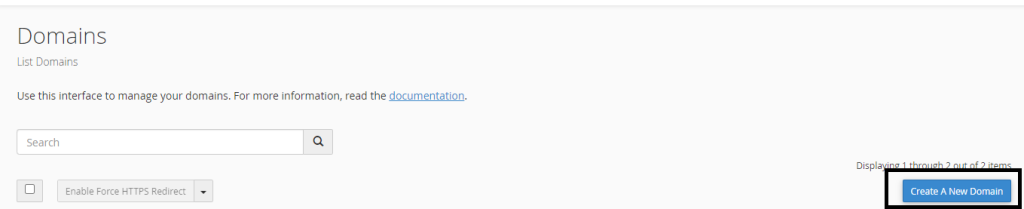
After clicking that option Enter the Proper qualified Domain name with proper extension
For Example : abcxyz.com
Deselect the “Share document root (/home/username/public_html) with “abcxyz.com”.” option.
Enter the directory where you want the files for this domain to exist.
After finishing the directory setup Click Submit Option.

You can check the Created domain under Domains section.
Update DNS (if needed): If your domain is registered elsewhere and not pointing to your hosting provider’s nameservers, you’ll need to update the domain’s DNS settings to point to your hosting. This usually involves setting the nameservers provided by your hosting company in your domain registrar’s control panel.
After these steps, your domain should be created and ready to use within cPanel. Remember that DNS changes might take some time to propagate across the internet, so your domain might not work immediately after setup. Allow some time for the changes to take effect.
To create a Domain in Direct Admin
Login to your Direct Admin control panel under Account Manager section Go to Domain Setup.
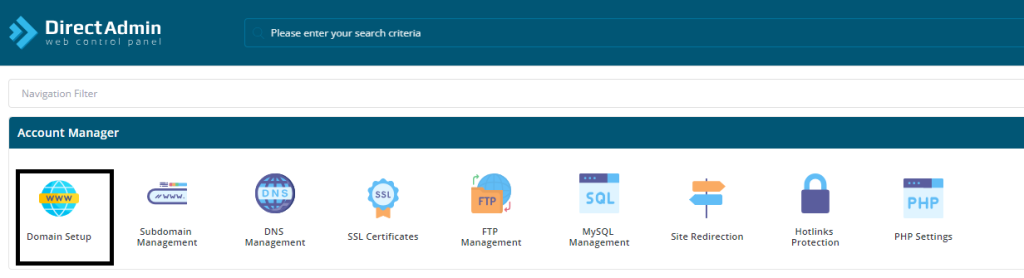
Click ADD NEW

Give your Domain Name with extension
Put the Bandwidth and Disk usage According to the hosting.
Finally Click CREATE

You can check the Created domain under Domain setup section.
Conclusion
Update DNS (if needed): If your domain is registered elsewhere and not pointing to your hosting provider’s nameservers, you’ll need to update the domain’s DNS settings to point to your hosting. This usually involves setting the nameservers provided by your hosting company in your domain registrar’s control panel.
Once you’ve completed these steps, your domain should be set up and ready to use in Direct Admin. Keep in mind that DNS changes might take some time to propagate across the internet, so your domain might not work immediately after setup. Allow some time for the changes to take effect.
Congratulations! You’ve successfully added a domain to your control panel. Your online journey takes a significant step forward as you expand your digital presence.
Remember, domain management is an ongoing process. Stay proactive by regularly reviewing and updating your domain settings as needed. Here are a few tips:
Security Measures:
Ensure your domain is protected by enabling security features like SSL certificates and setting strong passwords. Regularly monitor for any unauthorized changes or suspicious activity.
Renewal and Maintenance:
Keep track of your domain’s expiration date and renew it promptly to prevent disruptions in your online services. Additionally, stay informed about domain-related updates and make necessary changes accordingly.
Optimization and Expansion:
As your online presence grows, consider optimizing your website for better performance and explore opportunities to expand your domain portfolio if needed.
Support and Resources:
Should you encounter any challenges or have questions, don’t hesitate to utilize the support resources provided by your hosting provider. Forums, documentation, and customer support can be invaluable assets.
Your domain is more than just an address; it’s your digital identity. By managing it effectively, you’re laying a strong foundation for your online success.
Here’s to the success of your newly added domain! If you need further guidance or have more domains to manage, revisit this guide or explore additional resources available within your control panel.
For More Information
https://docs.cpanel.net/cpanel/domains/domains/
https://www.interserver.net/tips/kb/setup-domain-in-directadmin/