
Table of Contents
About URL redirects

URL redirection in a control panel refers to the capability provided by the control panel interface to manage the redirection of one URL to another URL. This feature is commonly used for various purposes such as:
- Website Maintenance: During website updates or maintenance, you might want to redirect visitors from your main website URL to a temporary maintenance page or a different page altogether.
- URL Canonicalization: URL redirection helps in ensuring that all variations of your website URL (e.g., with or without “www”) redirect to a single preferred version for better search engine optimization (SEO).
- Changing Domain Names: If you’ve changed your domain name, URL redirection allows you to automatically forward traffic from the old domain to the new one to avoid losing visitors and maintain SEO rankings.
- Creating Shortened URLs: URL redirection can be used to create shortened, more user-friendly URLs that redirect to longer, more complex URLs.
- Marketing and Campaign Tracking: In marketing campaigns, you can use URL redirection to track clicks and analyze the effectiveness of different advertising channels.
Control panels typically provide a user-friendly interface where you can set up and manage URL redirection rules without needing to delve into the server’s configuration files or write code. You can specify the source URL (the URL that visitors initially access) and the destination URL (the URL to which visitors are redirected), along with the type of redirection (e.g., permanent or temporary).
URL redirection in a control panel is an essential tool for website owners and administrators to manage their online presence, optimize user experience, and maintain the integrity of their web addresses.
Steps for adding URL redirection.
Login to cPanel: Access your cPanel account using your username and password.
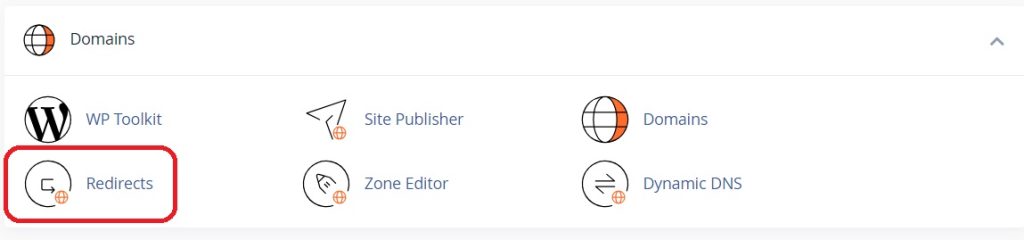
Locate the Redirects Icon: In the cPanel dashboard, look for the “Redirects” icon. It’s usually located in the “Domains” section or under the “File” section, depending on your cPanel theme and version.
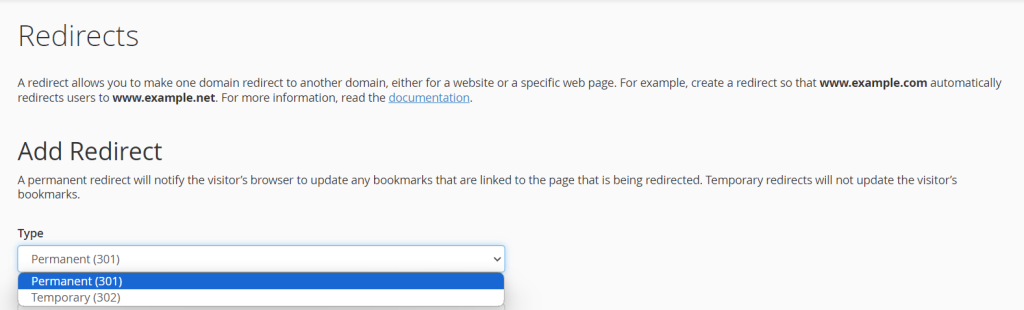
Choose Redirect Type: In the Redirects interface, you’ll see options for setting up redirects. You can choose between Permanent (301) and Temporary (302) redirects. A 301 redirect is used for permanent changes, while a 302 redirect is temporary.
Select the Domain: Choose the domain from the drop-down menu for which you want to set up the redirect.

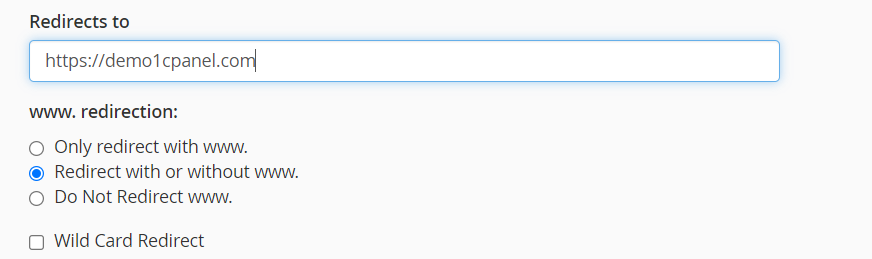
Enter Source URL: In the “Redirects to” field, enter the URL to which you want to redirect the traffic. Make sure to include the full URL, including the “http://” or “https://”.
Choose Redirection Options: You can choose additional options such as whether to redirect with or without www, and whether to redirect with or without a
trailing slash.
Wildcards: Optionally, you can use wildcards to redirect multiple URLs to a single destination.
Add Redirect: Once you’ve configured the redirect settings, click on the “Add” button to save the redirect rule.

Test the Redirection: After adding the redirect, make sure to test it by accessing the source URL in a web browser and verifying that it redirects to the destination URL as expected.
The cPanel Redirects feature provides a user-friendly interface for managing URL redirection without the need to edit configuration files manually. It’s a convenient tool for website owners to ensure that visitors are directed to the appropriate pages or websites based on their URL requests.
Control panels typically provide a user-friendly interface where you can set up and manage URL redirection rules without needing to delve into the server’s configuration files or write code. You can specify the source URL (the URL that visitors initially access) and the destination URL (the URL to which visitors are redirected), along with the type of redirection (e.g., permanent or temporary).
URL redirection in a control panel is an essential tool for website owners and administrators to manage their online presence, optimize user experience, and maintain the integrity of their web addresses.